
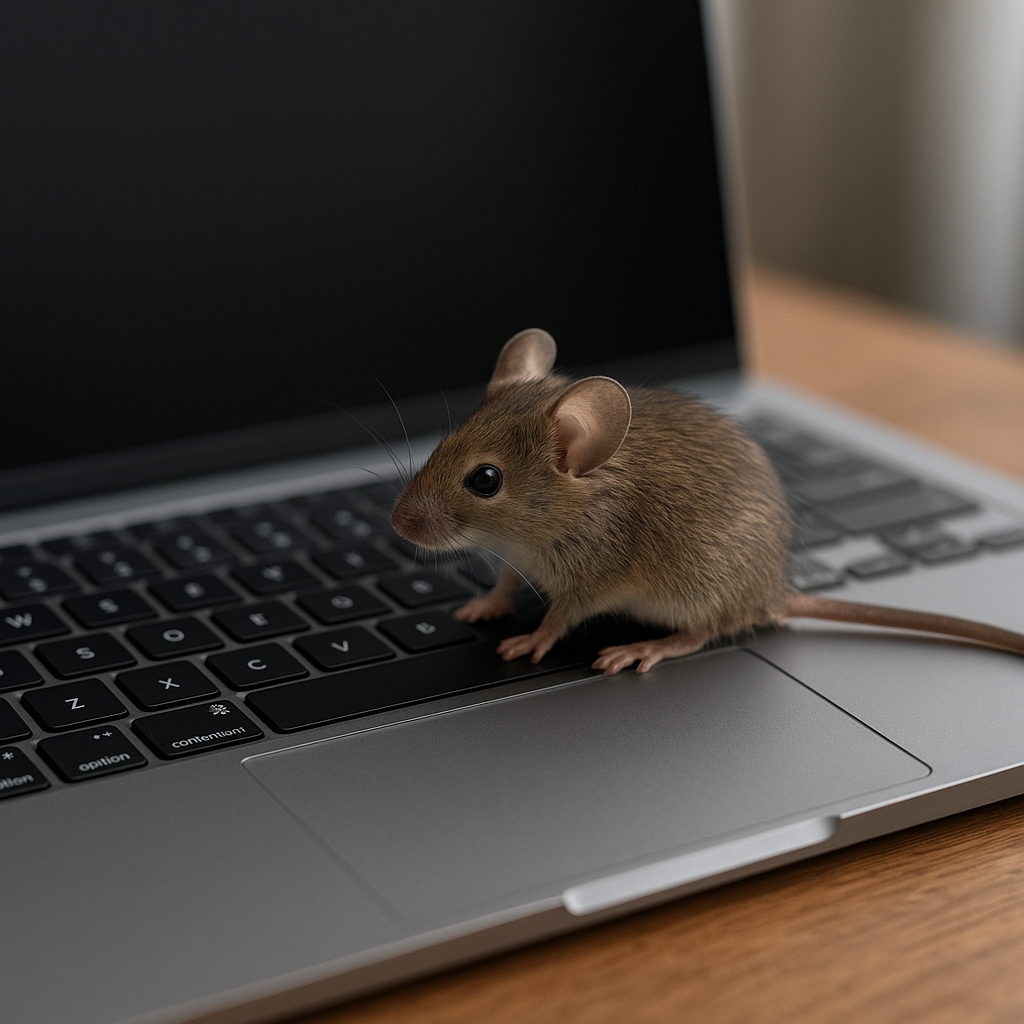
If the mouse on laptop disappeared, that does not automatically mean the touchpad is broken. First, move a finger across the touchpad, check any connected displays, and look for a touchpad key that may have been pressed accidentally. The pointer could be hidden, hard to see, or sitting on another screen.
The Windows 11 steps below can be followed with the keyboard. Windows 10 differences are labeled separately, and Mac users have a shorter troubleshooting section farther down.
First, Check Whether the Cursor Is Missing or the Laptop Is Frozen
Before changing settings, check whether the laptop still responds. On Windows, press the Windows key and see whether Start opens. On Mac, press Command + Space to open Spotlight. A response suggests the whole system has not frozen, although an individual app or pointing device may still be stuck.
These symptoms help narrow the next check; they are not definitive diagnoses.
| Symptom | What to check first |
|---|---|
| Keyboard works, but the pointer is not visible | Pointer visibility, other displays, and touchpad status |
| Pointer is visible but will not move | Touchpad toggle, mouse connection, and battery |
| Pointer disappears only in one app | Application-specific behavior or a frozen app |
| Keyboard and pointer both stop responding | Possible system freeze rather than an isolated mouse problem |
A pointer that blends into the background needs a visibility adjustment. A pointer that stays still despite movement needs input troubleshooting. If it vanishes only inside a video player or another full-screen app, start with that app.
Quick Ways to Find or Restore the Pointer
Try these numbered checks in order. Stop when normal pointer control returns.
1. Move the Pointer and Check Other Displays
Slide a finger across the touchpad several times, or move an external mouse. Check every connected monitor. With an extended desktop, the pointer can move onto another screen, including a display that is connected but switched off.
On Windows 11 and Windows 10, temporarily switch to the laptop display:
1. Press Windows + P to open the projection menu.
2. Use the arrow keys to select PC screen only.
3. Press Enter to apply that display mode.
This stops extending the desktop to another display. If the pointer returns, the problem may have been its location rather than a failed mouse. Restore the preferred display mode later through the same menu.
2. Check Whether the Touchpad Was Disabled
Look along the keyboard for a touchpad symbol, sometimes shown with a line through it. Depending on the laptop, that key works alone or with Fn. Some models use a different touchpad toggle.
Use the combination documented for the exact laptop model. There is no universal touchpad F-key, and pressing random function keys can change unrelated settings. If the symbol is unclear, check the model’s official manual.
Some laptops also disable the built-in touchpad when an external mouse is connected. Temporarily unplugging that mouse can help identify this setting.
3. Check an External Mouse
For an external USB mouse, Bluetooth mouse, or wireless receiver, start with the basic checks covered in Microsoft’s mouse and keyboard troubleshooting guidance:
- Check that the mouse is switched on.
- Replace its batteries or charge it if needed.
- Reconnect the USB cable or wireless receiver.
- Try another USB port, preferably directly on the laptop rather than through a hub.
- Check whether a Bluetooth mouse is connected, not merely paired.
- Test another mouse if one is available.
On Windows 11, press Windows + R, type ms-settings:bluetooth, and press Enter to open Bluetooth settings. Use Tab to reach the device controls and inspect the connection status.
If another mouse works, that narrows the problem. It does not prove that the built-in touchpad has failed.
4. Restart the Laptop Safely
Save open work first. Ctrl + S saves in many Windows applications, though some apps require additional prompts.
For a keyboard-accessible restart on Windows 11 or Windows 10:
1. Press Ctrl + Alt + Delete.
2. Press Tab until the Power button is selected.
3. Press Enter to open the power options.
4. Use the arrow keys to select Restart.
5. Press Enter to confirm.
A forced shutdown is a last resort for an unresponsive system, not a normal cursor fix. Holding the physical power button until the laptop turns off can lose unsaved work.
How to Restore a Missing Cursor in Windows
These instructions focus on Windows 11. For keyboard navigation, Tab moves between controls, Shift + Tab moves backward, and arrow keys move through lists or options. Enter activates buttons; Space commonly switches a selected checkbox or toggle. Focus is usually shown by an outline or highlight.
Check Touchpad Settings
Use the direct Settings shortcut so there is no need to find the page with a mouse.
1. Press Windows + R to open Run.
2. Type ms-settings:devices-touchpad.
3. Press Enter to open touchpad settings.
4. Press Tab until the Touchpad switch is selected, if one is available.
5. Press Space if the switch is off.
Windows 11 normally places this page under Settings, Bluetooth & devices, Touchpad. Windows 10 uses Settings, Devices, Touchpad.
Available controls depend on the laptop and installed drivers. If there is no Touchpad switch or the page is unavailable, do not assume the hardware is broken. Some laptops use manufacturer-specific controls. Check the exact model’s documentation.
If the page offers an option to leave the touchpad on when a mouse is connected, review that setting too.
Make the Pointer Easier to See
If the cursor moves but disappears against certain backgrounds, increase its size or choose a contrasting color.
1. Press Windows + R.
2. Type ms-settings:easeofaccess-mousepointer.
3. Press Enter.
4. Use Tab to select the pointer style or size control.
5. Use arrow keys to adjust the selected option, or Space to select a style.
On Windows 11, these controls are under Accessibility, Mouse pointer and touch. Windows 10 uses the Ease of Access mouse-pointer settings.
Windows also has an optional location indicator:
1. Press Windows + R.
2. Type main.cpl and press Enter to open Mouse Properties.
3. Press Ctrl + Tab until the Pointer Options tab appears.
4. Press Tab until Show location of pointer when I press the CTRL key is selected.
5. Press Space if the checkbox is unchecked.
6. Tab to OK and press Enter.
After enabling this option, pressing Ctrl briefly marks the pointer’s location. Ctrl does not reveal the pointer by default on every laptop.
These changes improve pointer visibility. They do not repair a touchpad or mouse that is not sending movement input.
Check for Updates or Driver Problems
If the earlier checks fail, escalate gradually rather than immediately removing drivers.
1. Check Windows Update
Press Windows + R, type ms-settings:windowsupdate, and press Enter. Tab to Check for updates and activate it with Enter. Review the results and save work before any required restart. Optional driver updates may appear under Advanced options, Optional updates on Windows 11; install only updates relevant to the device.
2. Check the Laptop Manufacturer’s Support Page
Search the manufacturer’s official website using the exact laptop model and installed Windows version. Look for applicable touchpad drivers or troubleshooting instructions. Avoid third-party driver-updater tools and downloads from unfamiliar sites.
3. Inspect Device Manager
Press Windows + R, type devmgmt.msc, and press Enter. Use Tab to reach the device tree, arrow keys to select categories, and Right Arrow to expand them. Pointing devices may appear under Mice and other pointing devices or Human Interface Devices.
Select a relevant device and press Alt + Enter to inspect its properties and device status. Do not disable or uninstall unfamiliar entries. If an error appears, or the problem began immediately after a driver update, use official model-specific guidance before attempting rollback or reinstallation.
If the Cursor Disappears Only in One App
Press Alt + Tab to switch to another application. If the pointer appears there, focus on the original app rather than system drivers.
Some applications intentionally hide the pointer during typing, video playback, or full-screen use. Moving the mouse or leaving full-screen mode may bring it back.
Save work, restart the affected app, and check for its updates. A frozen application may need to be closed, but ending it can discard unsaved changes.
What to Try If the Cursor Disappears on a Mac
Mac shortcuts and settings differ from Windows. Try these checks separately:
- Move a finger quickly on the trackpad or shake the mouse. The pointer enlarges temporarily if Shake mouse pointer to locate is enabled.
- Check connected external displays for a misplaced pointer.
- Check an external mouse’s power, battery, receiver, or Bluetooth connection.
- Increase pointer size or change its outline and fill colors.
- Save work and restart if the problem persists.
On recent macOS versions, pointer controls are in Apple menu, System Settings, Accessibility, Display, under Pointer. Older versions may use System Preferences and different labels. Apple’s guide explains how to make the pointer easier to see on Mac; select the guide version matching the installed macOS.
Command + Space opens Spotlight for searching for settings. However, full keyboard navigation is not necessarily enabled, so Tab may not reach every control. A working external mouse can help change accessibility settings.
For a normal keyboard-initiated restart, press Control + F2, or Fn + Control + F2 depending on the keyboard, to focus the menu bar. Use arrow keys to open the Apple menu and select Restart, then press Return. Review any confirmation or save prompts.
If the Cursor Still Does Not Return
Before contacting support, collect a few useful details:
- Does an external mouse work?
- Does the built-in touchpad work after a restart?
- Does the problem occur across applications?
- Did it begin immediately after an update or software change?
- Is there visible damage or evidence of a spill?
Contact the laptop manufacturer’s official support service when basic troubleshooting fails or hardware damage is suspected. Describe the symptoms and checks already completed. A factory reset, operating-system reinstall, or firmware update is not a routine early fix for a missing cursor.
FAQ
Why did my laptop cursor suddenly disappear?
Possible causes include an accidentally disabled touchpad, another display, an app hiding the pointer, a disconnected mouse, or a software problem. The symptom alone does not identify one cause.
How can I troubleshoot my laptop without a mouse?
On Windows, use Tab, Shift + Tab, arrow keys, Enter, and Space. Windows + R opens the settings shortcuts in the numbered instructions above. If the keyboard also stops responding, investigate a possible system freeze.
Why does my external mouse work but my touchpad does not?
The touchpad may be disabled through a key, settings, or an external-mouse preference. Driver problems or hardware faults are also possible. Check the simpler causes first.
Does a missing cursor mean my touchpad is broken?
No. If you can’t find mouse on laptop screens, check visibility, connected displays, touchpad settings, and software behavior before concluding that hardware has failed.